Questions guide
AI agent questions in Revit
On a long task, an AI agent connected to Revit through VI MCP does not stop to ask you in chat. It puts each question, or each choice it made for you to check, into the Questions window in Revit and keeps working on everything else. You answer there when it suits you, or pass the question to a teammate, and the agent reads the answer and carries on.
Updated November 2026
Before you start
- VI MCP 1.2.0 or newer, from the download page
- Revit 2022, 2023, 2024, 2025, 2026, 2027
- Claude, ChatGPT, Cursor or Codex connected to VI MCP
- To ask colleagues: a VI MCP team with them. See how to add teammates
- 1
Give the AI a long task
Ask for the whole job, for example “Model the roof terrace walls on Level 5 and put your questions in the Questions window.” The agent decides by itself how long the task is: on a short one you are watching, it asks in chat; on a long one, it uses the window. Your word wins either way: say “ask me here” or “put questions in the window”.
It sends two kinds of item:
- Question: it cannot decide, and the work that depends on the answer waits. It comes with up to four multiple-choice questions, the recommended option first, and Other for your own words.
- Assumption: it decided because the choice is easy to redo, kept going, and asks you to check it later.
Each item names the model, says what is done and why the agent is unsure, and can carry up to three pictures of views and the elements it is about.
- 2
See that a question is waiting
The Questions button sits next to Team in the Teams panel of the VI MCP ribbon tab. A red dot on it means something unread is waiting. Hover over the button and press F1 to open this guide.
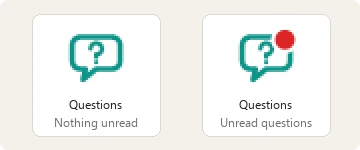
The button without and with unread questions. The small VI MCP pop-up that shows while an agent works in Revit also gets a line at the bottom, such as “2 unread questions · 1 answer ready for your AI”. Click the line to open the window.
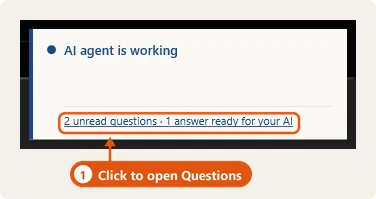
Click the questions line (1) to open the Questions window. - 3
Open the Inbox
Inbox lists what waits for you, with the number of unread items on the tab, grouped by the model each one is about. Click Open to read one.
To deal with a whole model at once, use Confirm all for its assumptions or Decline all with an optional reason. Both ask first and act only on the items you see.
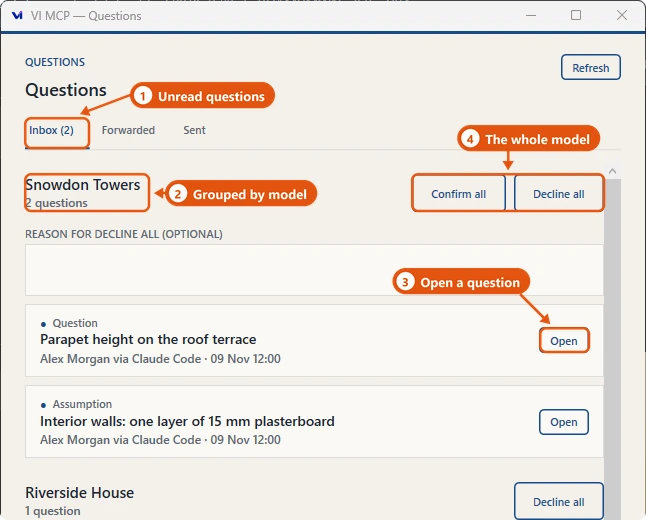
Unread items on the tab (1), grouped by model (2). Open one (3), or act on a whole model (4). - 4
Answer a question
The card shows who asked, through which AI, the model and the context. Click a picture to see it full size. Under Elements, Select, Show and Isolate find the elements in your open model, and Copy ids copies their ids. If the model is not open, open it first or pick it from the list.
Choose an option, or Other and type your own answer. Add a comment and up to three pictures if they help: Paste a screenshot, Pick a file, or Capture active view. Then click Answer. The first answer closes the question for everyone it was sent to.
Decline sends your comment as the reason, and the agent reads it like an answer.
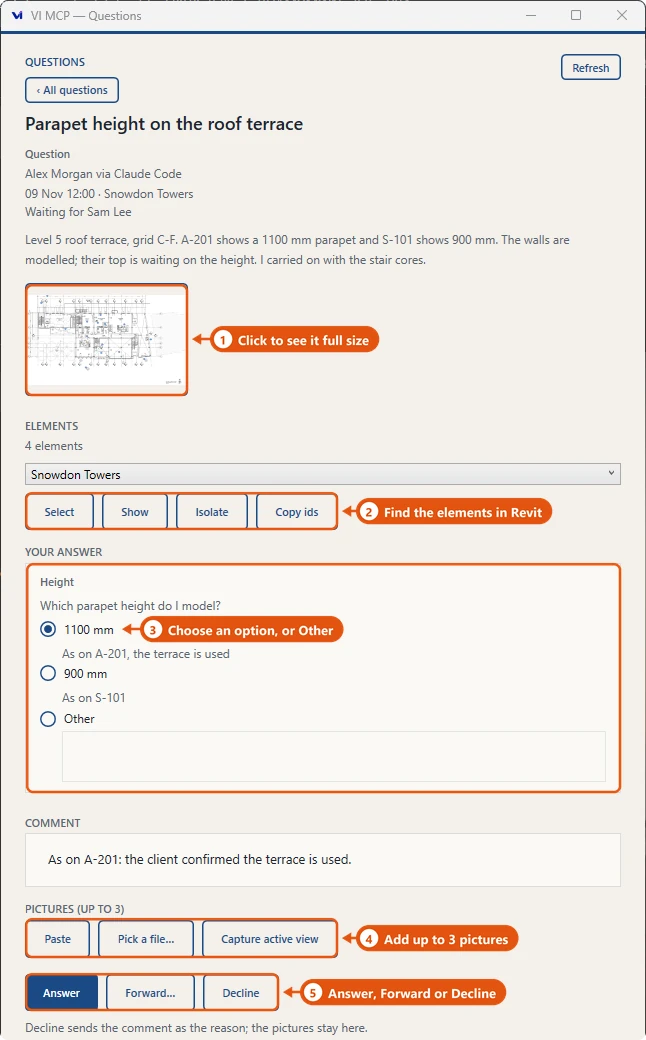
See the picture (1) and the elements (2), choose an option (3), add pictures if needed (4), then Answer (5). - 5
Check an assumption
An assumption shows what the AI took and why. If it is right, click Confirm. If not, type what it should be under Change it to and click Change: the agent then redoes that part your way.
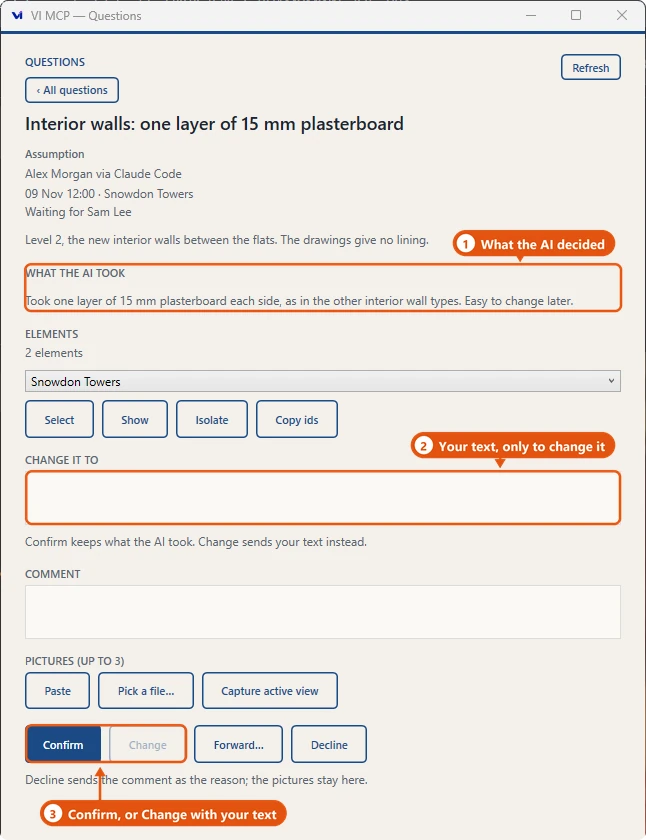
Read what the AI decided (1). Confirm it, or type your version (2) and click Change (3). - 6
Ask a teammate instead
If a colleague knows better, click Forward. Pick the team and the person, say why you are passing it on, add pictures if they help, and click Send. The question stays in your Forwarded tab until someone answers it.
Forward offers only people in a team you share with the person who asked. If the list is empty, add your colleagues as teammates first: an Owner invites them by their Autodesk email in the Team window. The Revit MCP for teams guide shows how.
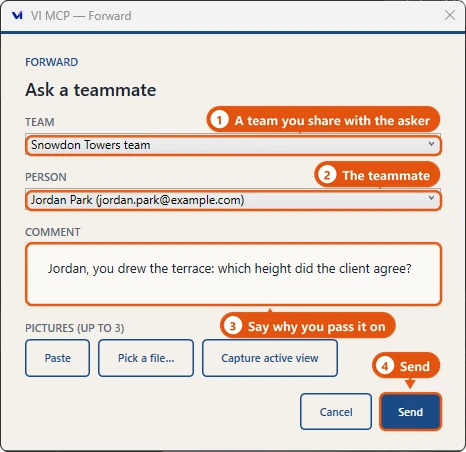
Pick a team you share with the asker (1) and a teammate (2), say why (3), then Send (4). - 7
The AI reads the answers
The questions your AI asked are under Sent, grouped by the part of the work they belong to. The tab counts the answers that are ready. The agent checks them after each finished part of the work; to hurry it, say “check the Questions window”. It acts on each answer within what it asked and then closes the question, which moves it to History.
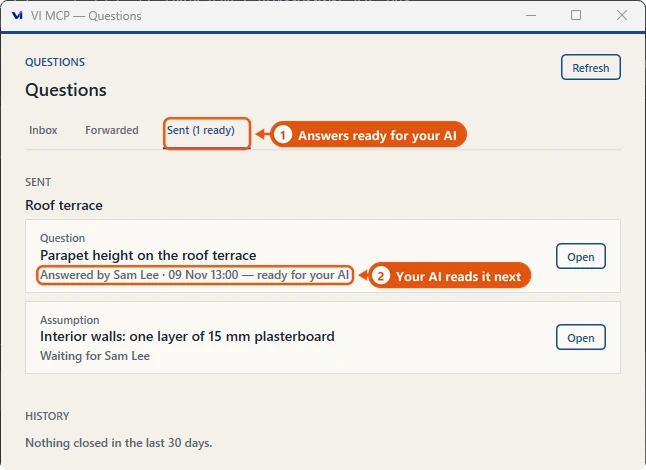
Answers waiting for your AI are counted on the tab (1) and marked on each item (2).
Teammates
Let the AI ask a colleague directly
Say who decides, for example “Ask Sam Lee about the parapet height” or give their Autodesk email. The AI sends the question to up to five people at once, straight into their Questions window. It does this only when you say who decides; otherwise every question comes to you.
Everyone it asks must be in a VI MCP team with you. Create a team and invite your colleagues first, as the Revit MCP for teams guide explains. Nobody is emailed: the question appears in your colleague’s Questions window, with the red dot on their Questions button.
Away from Revit
Answer on your phone
The same Inbox, Forwarded, Sent and History are in the VI MCP app at app.vi-mcp.cloud, in the browser of any phone, tablet or computer, with push notifications for every new question. See how to answer Revit AI questions on your phone.
From chat
Answer a question from chat
You do not have to use the window. Ask your AI “What questions do I have?”, read them in chat and say what to answer. The AI shows the answer exactly as it will be sent and sends it only after you agree. The person who asked sees that the answer came from you through your AI.
Limits
How much a question can hold
| Pictures on a question, an answer or a forward | 3 |
|---|---|
| Size of each picture | Resized to at most 1920 px and 2 MB |
| People the AI asks at once | 5 |
| People a question can reach with forwards | 10 |
| Multiple-choice questions in one item | 4, with 2 to 4 options each, plus Other |
| How long a question stays open | 30 days |
| How long a closed question stays in History | 30 days |
Privacy
Who sees a question
A question, its pictures, the element ids and the model’s name are stored on our server, with the answers, comments and forwards people add, until 30 days after the question is closed and at most 60 days after it was asked. Only the person who asked and the people it was sent or forwarded to see it, and they always share a VI MCP team with the person who asked. Questions and answers reach the AI client of whoever reads them, and that client’s provider. For everything else VI MCP stores, see the privacy policy.
FAQ
Questions about Questions
- Does the AI stop and wait for my answer?
- No. On a long task it carries on with the work that does not depend on the answer and checks the Questions window after each finished part. When only the blocked work is left, it tells you how many questions are waiting and stops. On a short task you are watching, it simply asks in chat.
- Who can the AI send a question to?
- To you, unless you tell it who decides. It can also ask up to five of your teammates by their Autodesk email, and a question can reach ten people in all through forwards. Everyone it reaches must share a VI MCP team with you, so add your colleagues to a team first.
- Why is Forward greyed out?
- Nobody else shares a team with the person who asked, or the question has already reached its limit: ten people, or thirty forwards. The line under the buttons says which. Ask an Owner to invite the colleague you need to the team.
- What happens to a question nobody answers?
- It stays in the Inbox for 30 days and then expires. You can also Decline it with a reason, which the AI reads like an answer. The first answer closes a question for everyone it was sent to.
- Can the AI answer a colleague’s question for me?
- Only in your own words, and only after you agree. Ask it what questions you have, say what to answer, and it shows you the answer before anything is sent. Your colleague’s card then says the answer came from you through your AI.
- Why does a card say “Another teammate” instead of a name?
- That person is in a team with the person who asked, but not in any team with you, so their name and email are hidden from you.