VI MCP app
Answer Revit AI questions on your phone
The VI MCP app at app.vi-mcp.cloud lets you answer the questions your AI agent asks while it works in Revit, check the choices it made for you and manage your teams from a phone, a tablet or any computer, with no Revit needed. Install it on your phone with its Install app button and turn on push notifications, and your phone tells you the moment a question is waiting.
Updated November 2026

Before you start
- An Autodesk account: the one your Revit uses, or your own if you never open Revit
- A phone, tablet or computer with a current Chrome, Edge, Firefox or Safari
- For notifications on an iPhone or iPad: iOS or iPadOS 16.4 or later
- To get questions from colleagues’ AI: a VI MCP team with them, see Revit MCP for teams
Any Autodesk account works
You do not have to sign in with the account your Revit is connected to. The app shows the questions and teams of whichever Autodesk account you sign in with. So a project lead, a consultant or anyone else who decides but never opens Revit can sign in with their own account and answer what is sent to them, as long as they share a VI MCP team with whoever asks. To follow the questions your own AI asked, sign in with the account your Revit uses.
- 1
Open the app and sign in
Open app.vi-mcp.cloud in your browser and tap Sign in with Autodesk. A browser window opens on the Autodesk sign-in page; sign in there as you do in Revit.
If nothing opens, your browser blocked the window: tap Open the Autodesk sign-in page, which the app then shows instead.
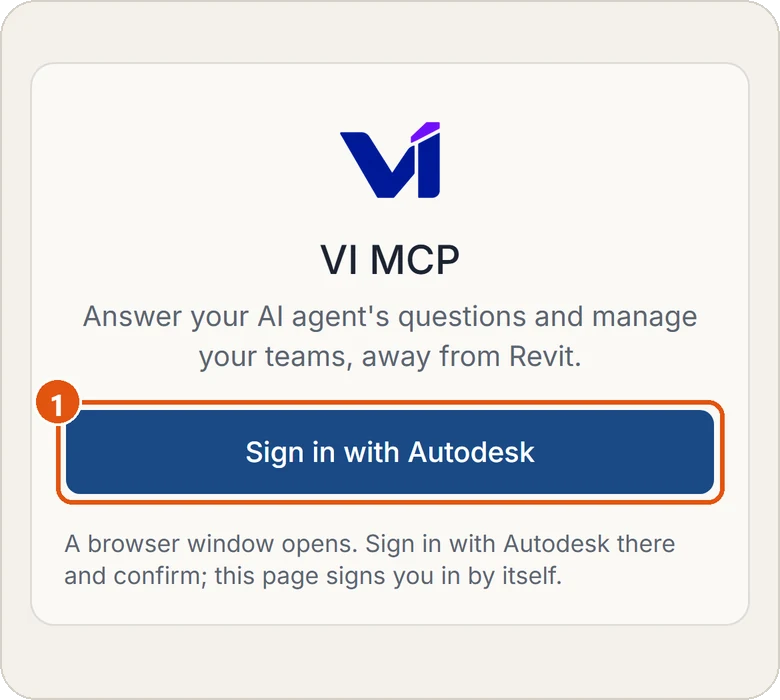
Tap Sign in with Autodesk (1). - 2
Confirm the sign-in at Autodesk
After Autodesk, a page asks Sign in to the VI MCP portal? It names your browser and your Autodesk account. Tap Confirm only for a sign-in you started yourself, just now. The window then closes by itself and the app opens your questions.
If the page says in red that the sign-in was started from a different network, and you did not just tap Sign in on another device, press Cancel: somebody else started it. On a phone the window may stay open in the Home Screen app; close it and go back to VI MCP.
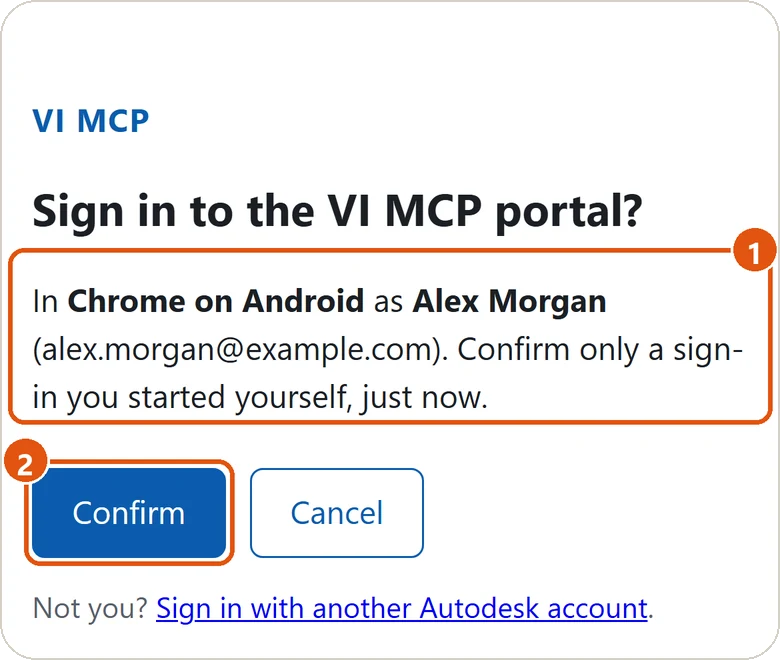
Check the browser and the account (1), then Confirm (2). A browser stays signed in for 30 days, or until you sign out under Account. Signing out there signs out only that browser; Revit and your other devices stay signed in.
- 3
Answer a question
Questions has the same four tabs as the Questions window in Revit: Inbox for what waits for you, Forwarded, Sent for what your AI asked, and History. A blue dot marks an unread question. Tap one to open it.
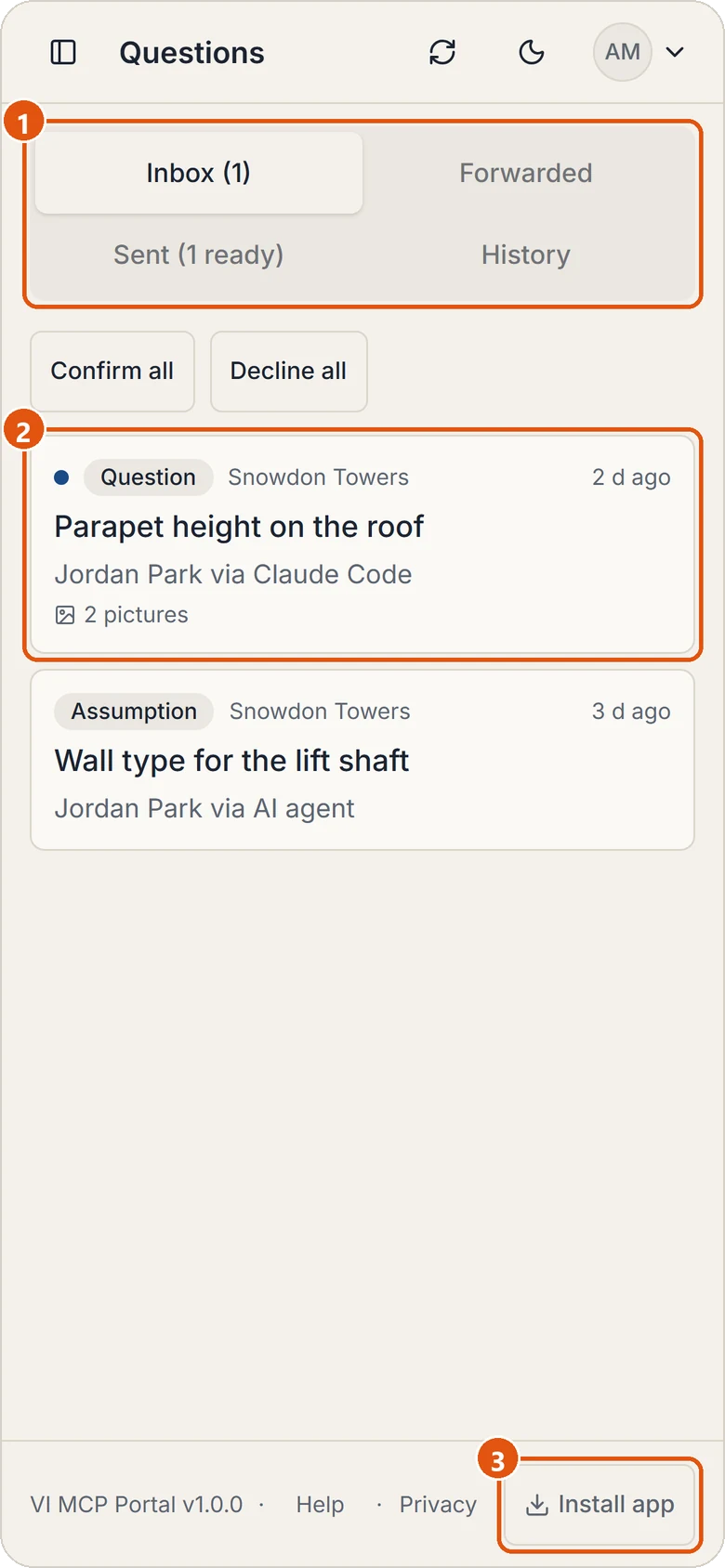
The tabs (1) and an unread question (2). Install app (3) is step 5. The question shows who asked, through which AI, the model and the pictures the AI attached; tap a picture to see it full size. Copy ids copies the element ids; Select, Show and Isolate stay in the Questions window in Revit.
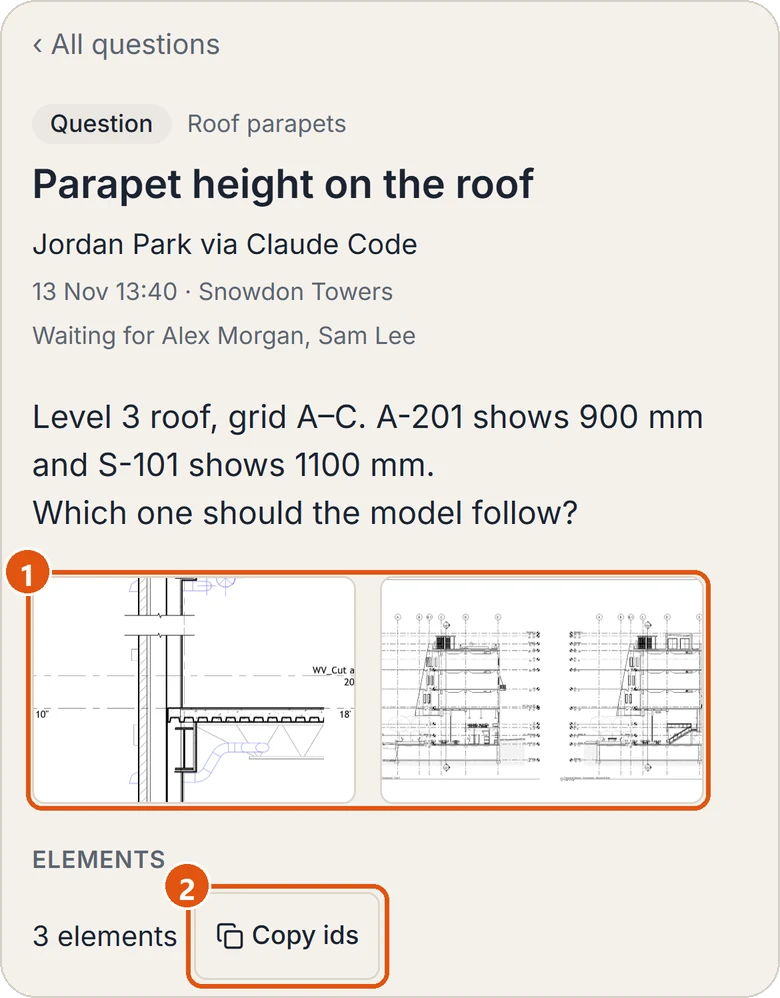
The AI’s pictures (1) and Copy ids (2). 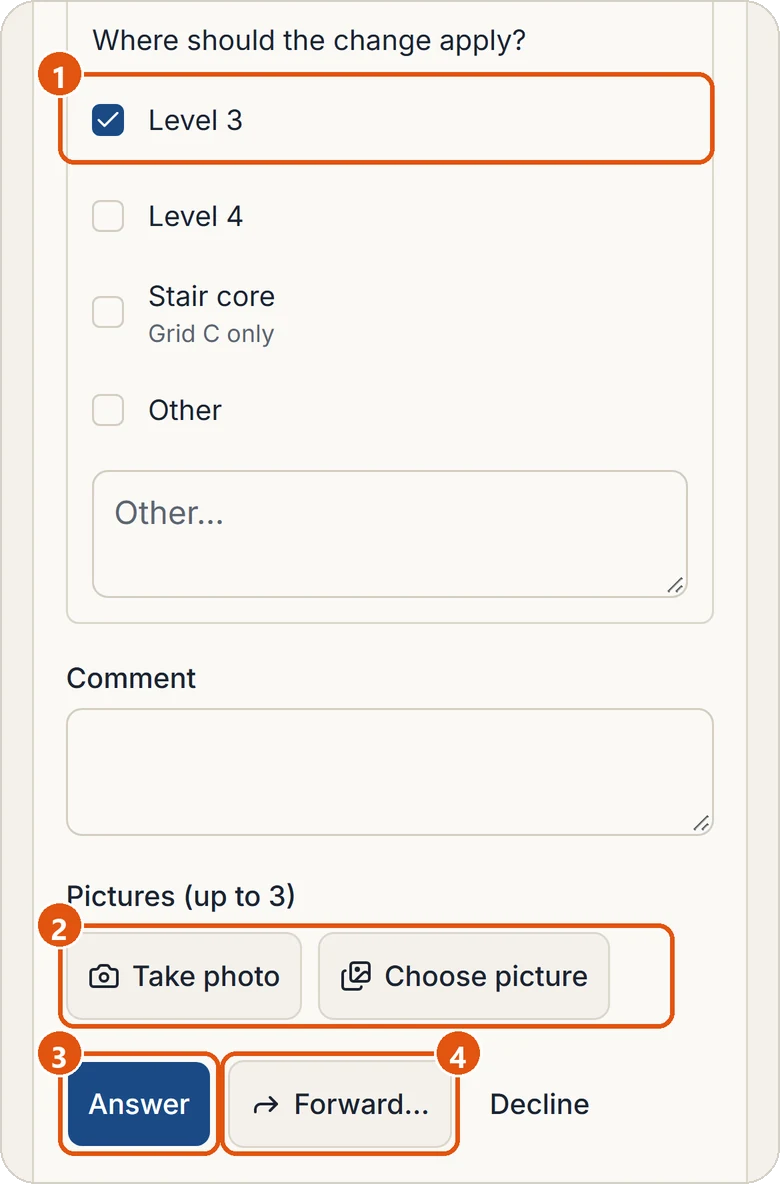
Choose your options (1), add pictures if they help (2), then Answer (3) or Forward (4). Choose an option for every part of the question, or Other and type your own words. Add a comment and up to three pictures with Take photo or Choose picture, and tap Answer. If a colleague knows better, tap Forward; to say no, Decline with a comment. An assumption, a choice the AI already made, has Confirm and Change instead. The AI reads your answer the next time it checks its questions. The AI agent questions guide explains each kind.
- 4
Your teams and invitations
Team is the Team window from Revit: invitations waiting for you, the teams you own and the teams you are in. An Owner can invite colleagues by their Autodesk email and create a team here, without Revit. The Revit MCP for teams guide covers roles and limits.
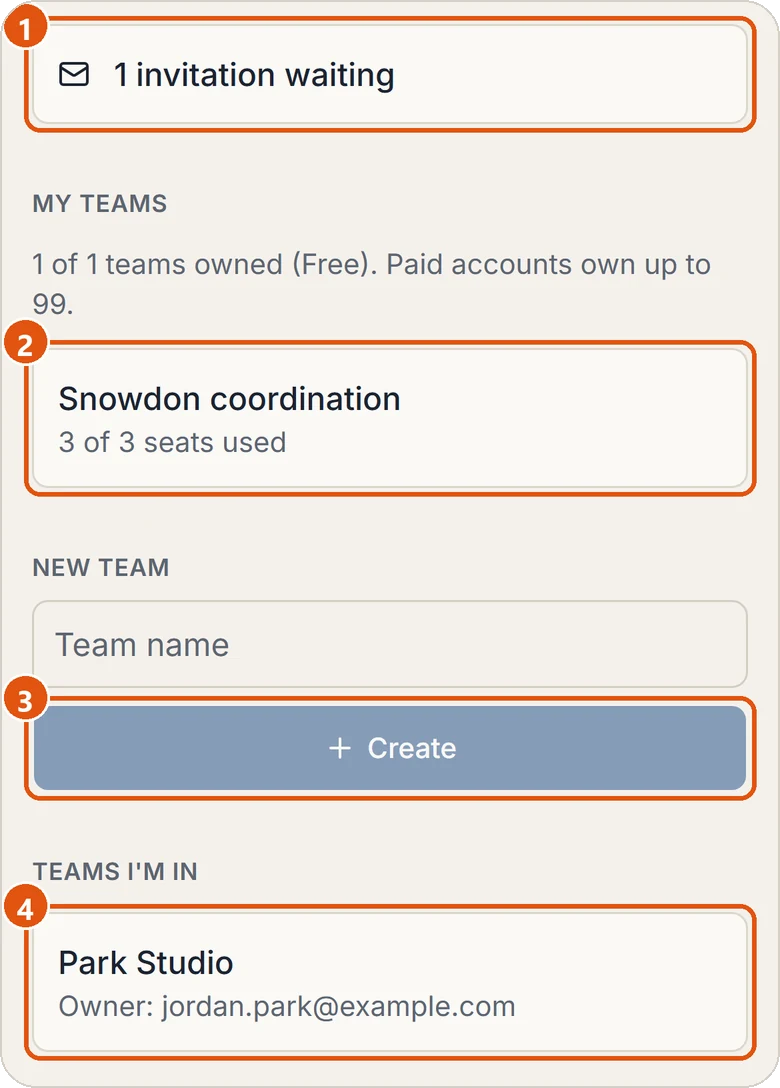
Invitations (1), your teams (2), a new team (3) and the teams you are in (4). - 5
Install the app
Installed, VI MCP gets its own icon on your Home Screen, opens in a window of its own without the browser’s address bar, and shows the number of unread questions on its icon where the phone supports it. On an iPhone or iPad this is also what makes notifications possible.
Android, and Chrome or Edge on a computer
After you sign in, tap Install app at the bottom of any page of the app, then Install when the browser asks. That is all: VI MCP appears with your apps, and you open it from its icon.
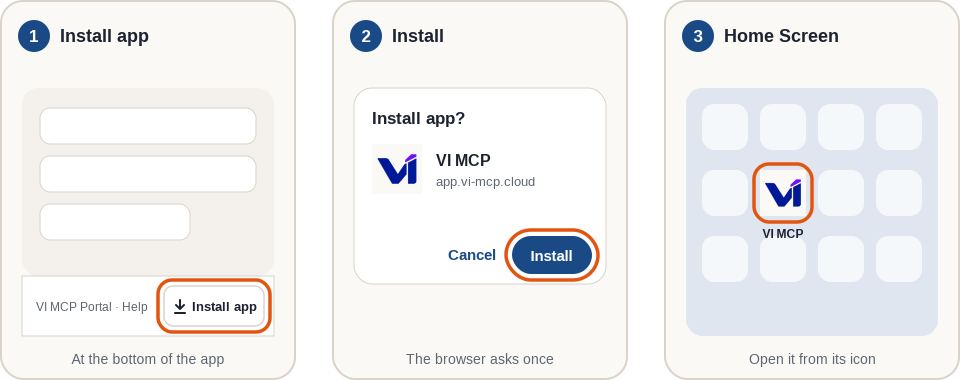
Install app (1), Install (2), and VI MCP is on your Home Screen (3). No Install app button? The app shows it only while the browser can install it: not once VI MCP is installed, and never in Safari or Firefox. In Chrome you can also open the menu (⋮) and choose Install app or Add to Home screen, whichever your Chrome shows.
iPhone and iPad
Safari has no Install app button, so you add VI MCP to the Home Screen from the Share menu:
- Open app.vi-mcp.cloud in Safari and tap Share. On iOS 26 and later, tap the ··· button first, then Share. On an iPad, Share is at the top.
- Tap Add to Home Screen. If it is not in the list, scroll down, tap Edit Actions and add it.
- Keep Open as Web App on, where your iOS shows it, and tap Add.
- Open VI MCP from its Home Screen icon. If it asks you to sign in, do it once: the Home Screen app keeps its own sign-in, apart from Safari.
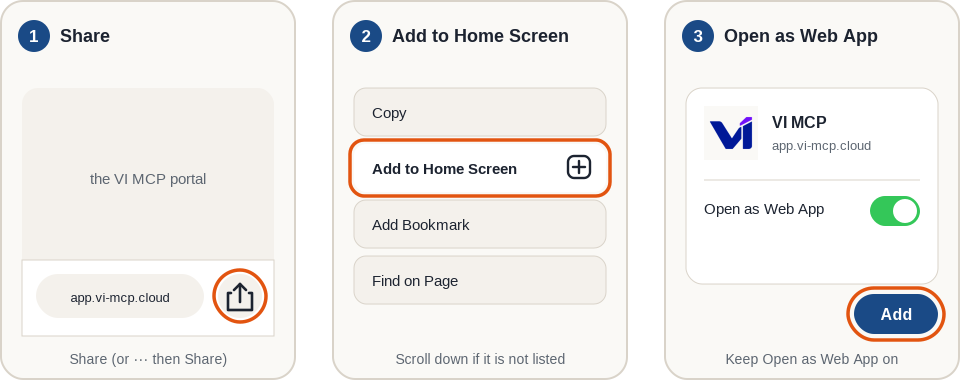
Safari on an iPhone. A sketch of the steps; see Apple’s guide for your iOS version. Chrome and Firefox on an iPhone add it the same way, from the Share button in their address bar. On a Mac, Safari adds it from File then Add to Dock.
- 6
Turn on notifications
Open Account and switch on Notifications on this device. Your browser asks whether VI MCP may send notifications: tap Allow. Then choose what you want to hear about:
- A new question to me, including one forwarded to you
- An answer to my AI’s question, or the news that everybody declined it
- An invitation to a team
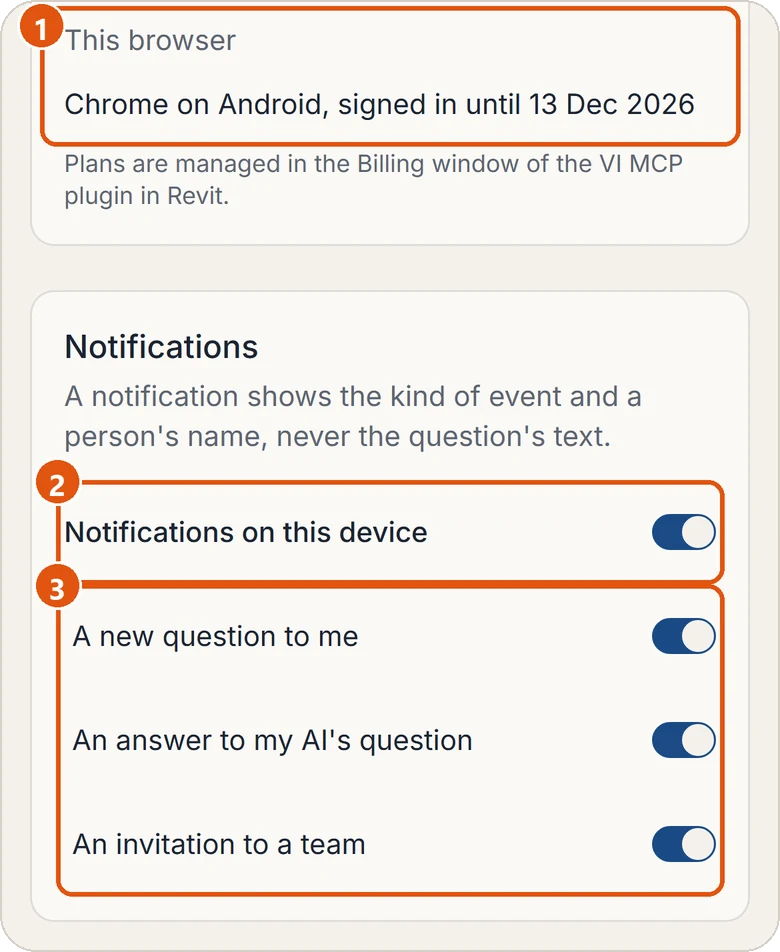
This browser (1), notifications on for this device (2), and the kinds you want (3). The switch is per device: turn it on on each phone, tablet or computer where you want notifications. On Android and on a computer it works in the browser itself. On an iPhone or iPad, open VI MCP from the Home Screen first; in a Safari tab the card tells you to add it.
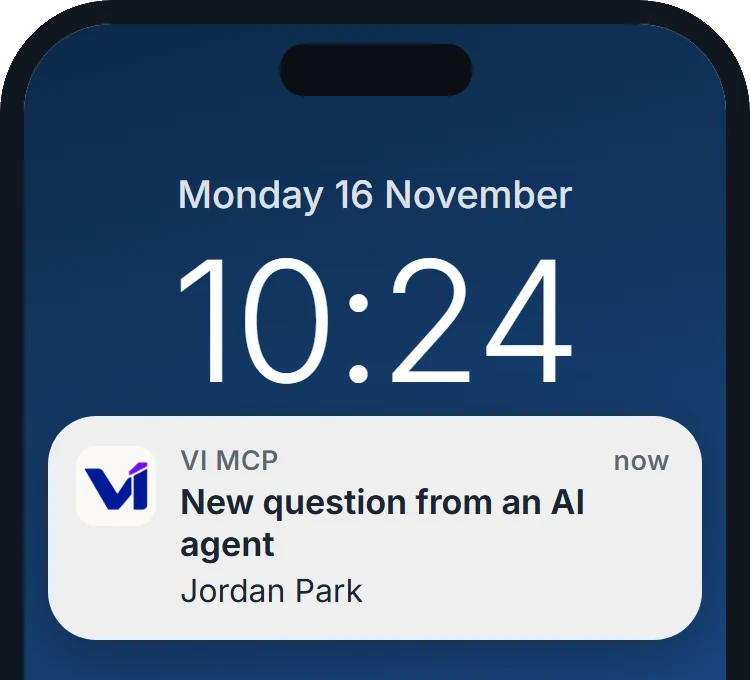
A notification says what happened and who is involved, such as New question from an AI agent with the name of the person whose AI asked. It never shows the question’s text or anything from your model. Tap it to open the question.
If the switch says that notifications are blocked for this site, allow them in your browser: in Chrome on Android, tap the menu, then Settings, Site settings, Notifications. On an iPhone, open Settings, Notifications, VI MCP.


Privacy
What the app keeps
The app keeps your sign-in in a cookie that only its server can read, never in the page, and stores each browser as a device of your account with a label such as “Chrome on Android”. For notifications it stores the address your browser’s push service gave it, until you turn them off or sign out. It runs no analytics and no third-party scripts. The privacy policy has the details.
FAQ
Questions about the app
- Do I need Revit or the VI MCP add-in to use the app?
- No. The app runs in the browser of any phone, tablet or computer. You sign in with your Autodesk account and answer questions, confirm assumptions and manage your teams there. Revit is only needed by whoever runs the AI agent.
- Can I sign in with a different Autodesk account than the one my Revit uses?
- Yes. The app shows the questions and teams of the account you sign in with, and it does not have to be an account with Revit connected. A project lead who never opens Revit can sign in with their own Autodesk account and answer the questions sent to them, as long as they share a VI MCP team with whoever asks. To see the questions your own AI asked, sign in with the account your Revit uses.
- Why do I get no notifications on my iPhone?
- On an iPhone or iPad, notifications work only in the app added to the Home Screen, on iOS or iPadOS 16.4 or later, not in a Safari tab. Add VI MCP to the Home Screen, open it from its icon, then turn on Notifications on this device under Account.
- What does a notification show?
- Only the kind of event and the name of the person involved, for example “New question from an AI agent” and the name of the person whose AI asked. It never contains the question’s text or anything from your model. Tap it to open the question in the app.
- How do I turn notifications off?
- Under Account, switch off Notifications on this device, or switch off just the kinds you do not want. Signing out of a browser also stops its notifications. You can also block them in the phone’s settings: on an iPhone in Settings, Notifications, VI MCP; in Chrome on Android under the menu, Settings, Site settings, Notifications.
- Does the app cost anything?
- No. Questions, teams and notifications in the app work on every VI MCP plan, Free included. The AI agent that asks the questions works in Revit and needs a VI MCP plan there; plans are chosen in the Billing window of the add-in.
- Can I use it on a computer?
- Yes. Open the same address in Chrome, Edge, Firefox or Safari. Notifications work in the browser on a computer without installing anything, and in Chrome and Edge the Install app button at the bottom of the app installs it as an app there too.