Parallel projects guide
Work on several Revit projects at once with AI
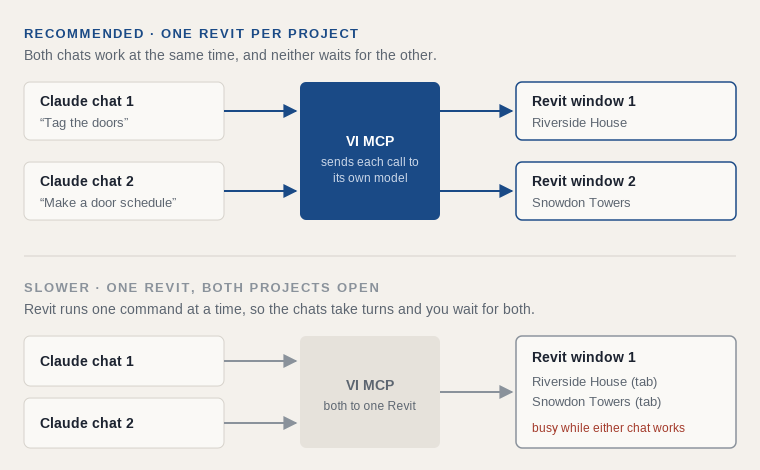
To have an AI agent work on several Revit projects at the same time, open each project in its own Revit, connect each Revit to VI MCP and give each project its own chat in Claude, ChatGPT, Cursor or Codex. Each Revit runs its own work, so one chat tags doors in one project while another builds a schedule in the next. This is part of the paid plans: a subscription connects up to 10 Revit at once on one computer, the trial connects 1.
Updated November 2026
Before you start
- A paid VI MCP plan: Monthly, 6 Months or Yearly, see pricing
- VI MCP 1.1.0 or newer in every Revit you use
- Revit 2022, 2023, 2024, 2025, 2026, 2027, any mix of them
- An AI client already connected, as in Connect Claude to Revit
Why one Revit per project
Revit does one thing at a time. With two projects open as tabs in one Revit, a command the AI runs in one project holds up the other, and your own clicks wait too. A second Revit has its own queue, so the two projects never wait for each other, and you can keep working by hand in a third.
- 1
Open each project in its own Revit
Open the first project as usual. Then start Revit again from the Start menu, or Shift+click its icon on the taskbar: Windows opens a second Revit window next to the first. Open the second project there. The two Revit can be the same year or different ones.
Each Revit uses its own memory, so how many you can keep open comfortably depends on your computer and on how large the models are.
- 2
Connect the second Revit
Only the first Revit on a computer connects by itself. In the second one, open the VI MCP ribbon tab and click Connect. The Connection window says which Revit is already connected; click Connect there and wait for the green dot. Do the same in every further Revit.
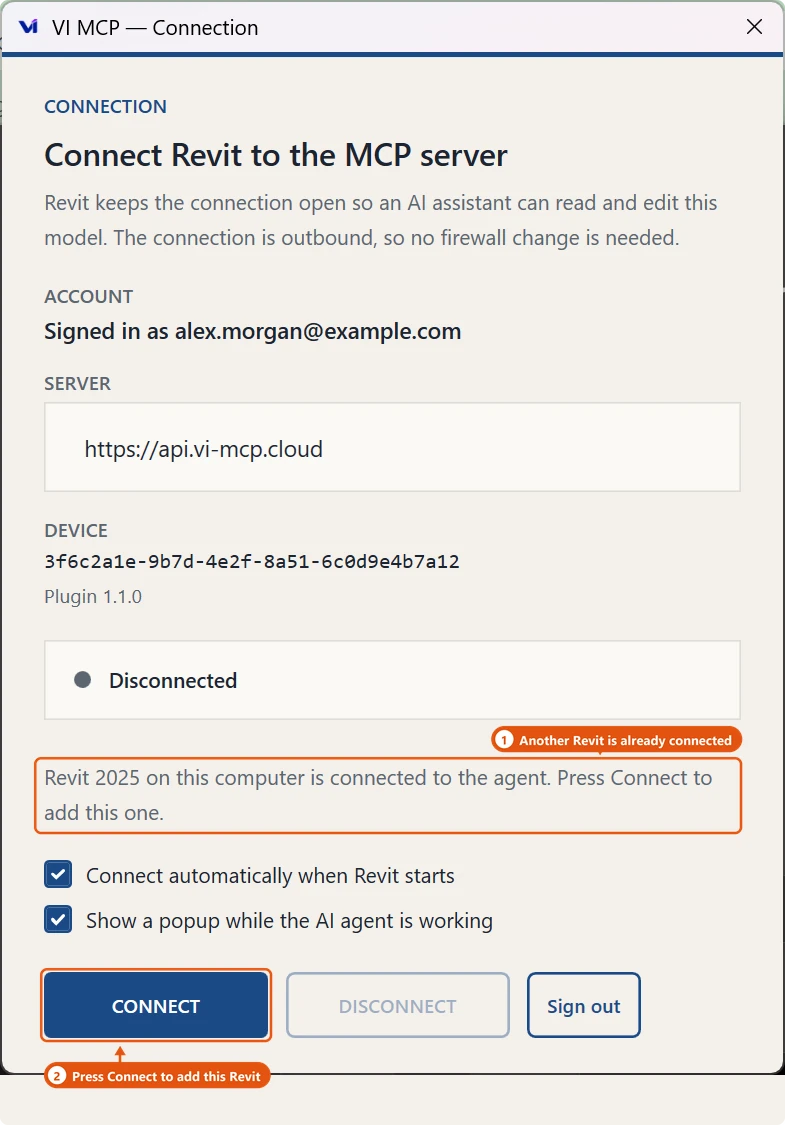
The second Revit says another one is connected (1). Click Connect to add it (2). - 3
Start one chat per project
Open a separate chat for each project: a new conversation in the Claude Chat tab, a separate session in the Code tab, or a new chat in ChatGPT, Cursor or Codex. Start each one by naming its model:
Work in Snowdon Towers. Make a door schedule for Level 1.
Work in Riverside House. Tag every door on the ground floor plan.
The AI sees every model open in every connected Revit. It asks which one you mean when it cannot tell, and once you have named it, it keeps working there. Elements it has found stay tied to their model, so a schedule meant for one project never lands in the other.
- 4
Let both work
Both chats now run at the same time. While the AI works, each Revit shows a small VI MCP pop-up in the corner that names the model it is working in, so you can tell at a glance which chat is doing what.
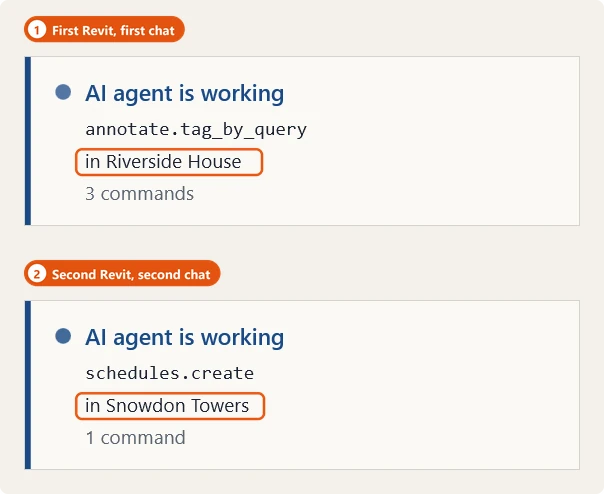
Each Revit names its own model: Riverside House in the first (1), Snowdon Towers in the second (2). On a long job, let each chat put its questions in the Questions window instead of stopping, so neither project waits for you.
Limits
How many Revit you can connect
| Plan | Revit connected at once, per computer |
|---|---|
| Trial (30 days) | 1 |
| Monthly, 6 Months, Yearly | Up to 10 |
The limit counts Revit, not projects: one Revit can hold several projects as tabs. On the trial, a second Revit is refused while the first is connected and says why. Disconnect the first one, or pick a plan from the Billing button in Revit. A connected Revit with no project open makes room for a new one by itself.
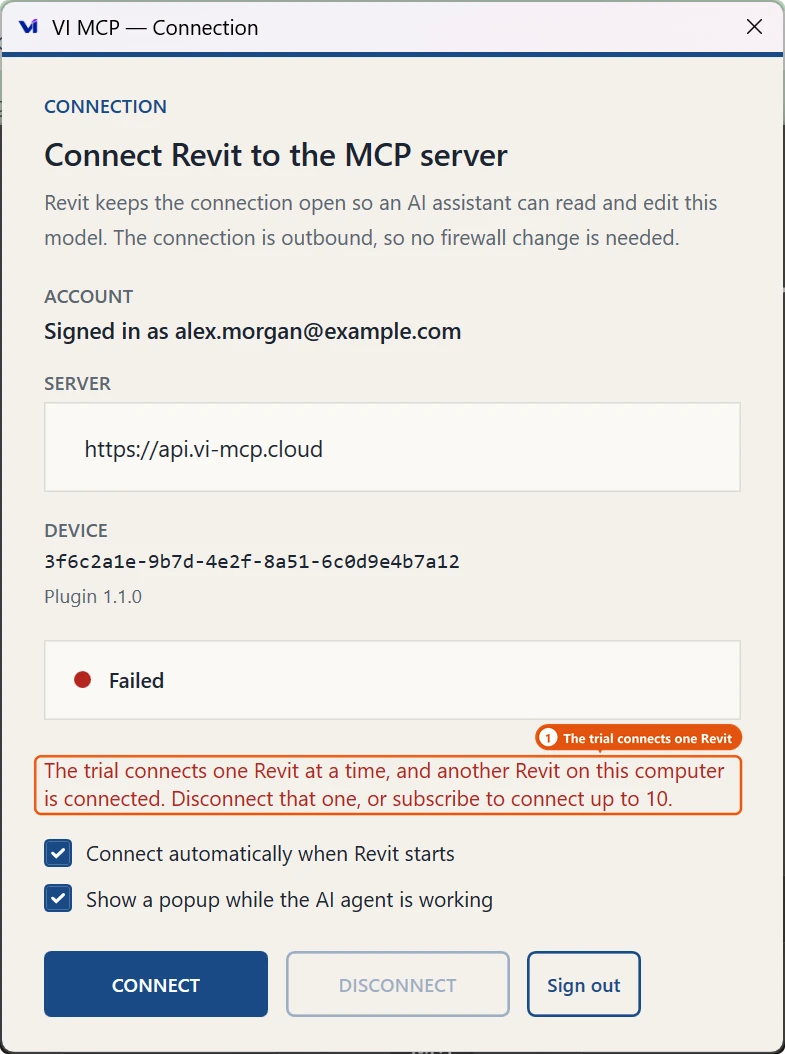
One Revit
Several projects in one Revit
This works on every plan, the trial included. Name the model and the AI works in it in the background, without changing the tab you are looking at. It is slower than separate Revit, because the projects share one queue. A few tools need the model on the screen, such as the current selection; the Claude guide explains how to let the AI switch tabs for those.
FAQ
Questions about parallel projects
- How many Revit projects can the AI work on at once?
- With a subscription, up to 10 Revit can be connected at once on one computer, each with its own project, and all of them can work at the same time. The 30-day trial connects one Revit at a time.
- Is working on several projects available on the free trial?
- The trial connects 1 Revit at a time. You can still open several projects in that one Revit and switch between them, but the AI works in them one command after another. Running projects side by side in separate Revit needs a paid plan.
- Why did my second Revit not connect by itself?
- Only the first Revit you open on a computer connects automatically. Every other Revit shows that another one is already connected; press Connect in its VI MCP Connection window to add it.
- Can I mix Revit versions?
- Yes. Each Revit connects on its own, so Revit 2024 and Revit 2026 can work side by side, each with its own project.
- Can one chat work in two projects?
- Yes: name the model and the AI works there. A set of elements it found stays tied to the model it came from, so it never acts on the wrong one. But one chat does one thing at a time, so for real parallel work give each project its own chat.
- What happens when I reach the limit?
- The Revit you are connecting says so and does not connect. Disconnect one of the others first. A connected Revit with no project open gives way to the new one by itself.