Revit MCP setup guide
Connect Grok to Revit
To connect Grok to Revit, install the VI MCP add-in, copy your key in Revit, and add
https://api.vi-mcp.cloud/mcp/ followed by
the key as a custom connector at grok.com/connectors. Grok then reads and changes your live model in Revit
2022, 2023, 2024, 2025, 2026, 2027 when you ask. Custom connectors work on every Grok plan, and Grok Build takes
the same server with one command.
Updated November 2026

Before you start
- Windows 10 or newer and Revit 2022, 2023, 2024, 2025, 2026, 2027
- Your Revit project open
- A Grok account on any plan, in a browser
- For Grok Build: SuperGrok or X Premium Plus
Which Grok works?
| Where | VI MCP |
|---|---|
| grok.com custom connector | ✓ Yes, on every Grok plan |
| Grok Build (CLI) | ✓ Yes, with SuperGrok or X Premium Plus |
| Grok Business, Enterprise | — Only through an admin, for the whole team |
Grok’s connectors are available to all Grok users. On Business and Enterprise, an admin adds each connector for the team, and a VI MCP address holds one person’s key, so connect VI MCP from a personal Grok account or Grok Build.
- 1
Install VI MCP and connect Revit
Install VI MCP and open Revit with your project. First time only: click Connect on the VI MCP tab, sign in with Autodesk and wait for the green dot.
Get it on Autodesk Marketplace - 2
Copy your key
On the VI MCP tab, click MCP Setup, then COPY JSON. Paste it into Notepad and copy only the key: the text after
Bearer, fromrevit_live_up to the closing quote.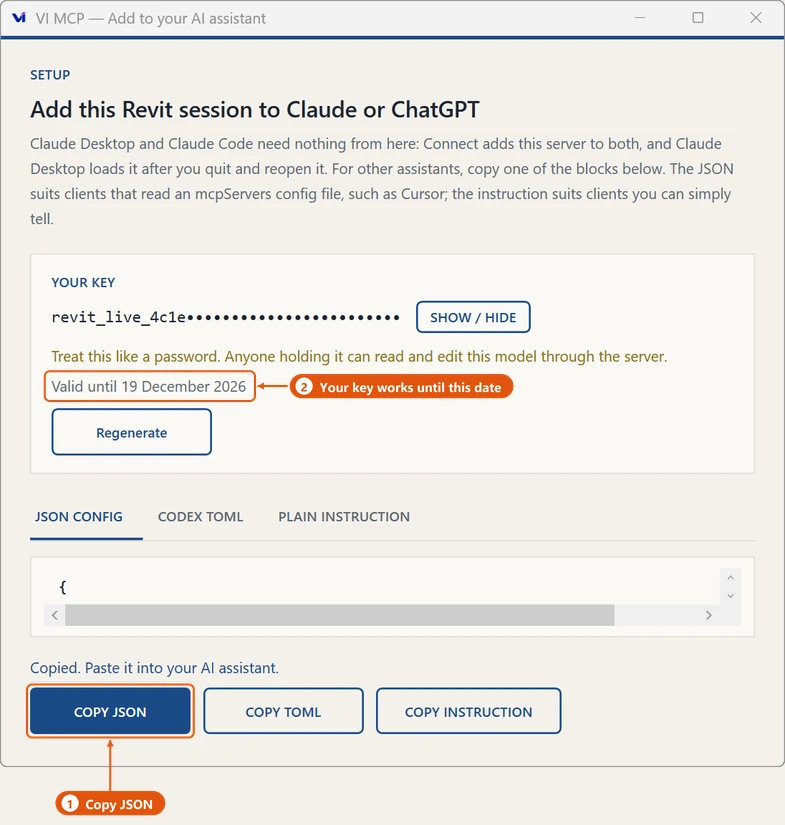
COPY JSON (1). The key works until the date shown (2). - 3
Add VI MCP to Grok
In your browser, open grok.com/connectors, click New Connector, then Custom. As the MCP server URL, enter
https://api.vi-mcp.cloud/mcp/and your key right after it, with no space:https://api.vi-mcp.cloud/mcp/revit_live_…Then add the connector. VI MCP needs no other sign-in: the key in the address is it.
- 4
Say hello to Revit
Keep Revit open and connected. Start a new chat on grok.com and send:
Say hello to Revit using VI MCP.
Grok replies with your Revit version, project and view: you are ready. If Grok asks before it uses VI MCP, allow it.
Grok Build
Connect Grok Build to Revit
With SuperGrok or X Premium Plus, install Grok Build in PowerShell, and sign in when it opens your browser:
irm https://x.ai/cli/install.ps1 | iex
Then add VI MCP once, with your key in place of YOUR_KEY. Here the key
travels in a header, not in the address:
grok mcp add --transport http revit-vi-mcp https://api.vi-mcp.cloud/mcp --header "Authorization: Bearer YOUR_KEY" grok mcp doctor revit-vi-mcp checks the connection. The format is in
Grok Build’s MCP guide.
Keep your key to yourself
The connector address, or Grok Build’s settings, holds your key. Anyone who has it can read and change your models while your Revit is connected, so do not share it. If it leaks, click Regenerate in MCP Setup: you get a new key and every other key of your account stops working.
A key lasts 30 days, and MCP Setup shows the date. After you sign in again or regenerate it, remove VI MCP from Grok’s connectors and add it again with the new key, or run the Grok Build command again.
Troubleshooting
If Grok cannot reach Revit
- Grok cannot add the connector
-
Check the address:
https://api.vi-mcp.cloud/mcp/, then the key, with no space, quote orBearerin it. - It worked before and stopped
- Open the VI MCP Connection window and check the green dot. If your key changed, add VI MCP to Grok again with the new one.
FAQ
Grok and Revit: questions
- Which Grok plans can connect to Revit?
- Custom connectors on grok.com work on every Grok plan. Grok Build needs SuperGrok or X Premium Plus. On Grok Business and Enterprise, only a team admin can add a connector, and it is added for the whole team.
- Can my team share one VI MCP connector?
- No. The address holds one person’s key, so everyone using it would work in that person’s Revit, under their account. Each person adds VI MCP with their own key.
- What can Grok do in Revit with VI MCP?
- The same as any assistant connected to VI MCP: find, create, change and document elements in your live model with 300+ Revit tools. A destructive action runs as a dry run first and reports how many elements it would change.
- Does Grok Build find VI MCP by itself?
- Sometimes. Grok Build also reads Claude Code’s settings, where VI MCP adds itself on Connect when Claude Code is installed. Run grok mcp list; if revit-vi-mcp is missing, add it with the command in the Grok Build section.