Teams guide
Revit MCP for teams
To use VI MCP as a team, open the Team window in Revit, create a team and invite your colleagues by the email they sign in to Autodesk with. They accept the invitation in their own Team window, and you decide who else is an Owner. Claude can then tell any of you who is in which team.
Updated November 2026
Before you start
- VI MCP 1.1.0 or newer, from the download page
- Revit 2022, 2023, 2024, 2025, 2026, 2027
- Everyone signed in to VI MCP with their Autodesk account
- Your colleagues’ Autodesk email addresses
- 1
Open the Team window
In Revit, open the VI MCP ribbon tab and click Team in its Teams panel. Hover over the button and press F1 to open this guide. If the window says Sign in with Autodesk first, click Open Connect, sign in, then come back and click Refresh.
The window shows your invitations at the top, then the teams you own under My teams and the teams you have joined under Teams I’m in. It does not update by itself: click Refresh to see what your colleagues have changed.
- 2
Create a team
Under New team, type a name of up to 128 characters and click Create. You become the team’s Owner and its page opens.
Two teams you own cannot share a name, whatever the capitals. Another person’s team may have the same name as yours, which is why the window shows each team’s Owner next to it.
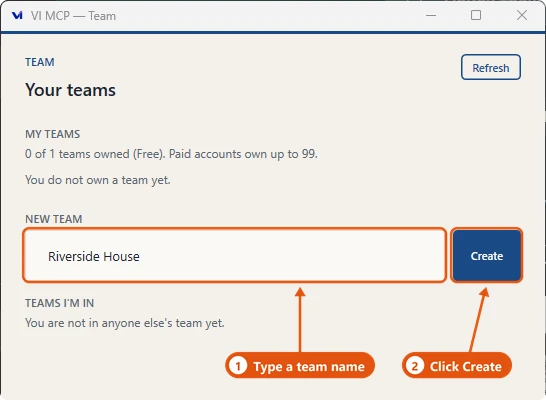
Type the name under New team (1), then click Create (2). - 3
Invite a colleague
On the team’s page, under + Teammate, type your colleague’s Autodesk email. Tick Owner if they should manage the team with you, then click Send invite.
The invitation waits under Pending invites and already takes a seat. It expires after 30 days; click Cancel to withdraw it sooner. Nobody is emailed, so let your colleague know.
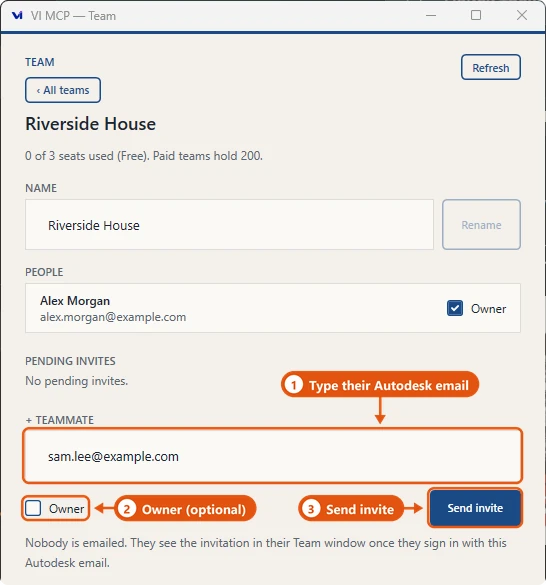
Type the email (1), tick Owner only if they should manage the team with you (2), then click Send invite (3). - 4
Your colleague accepts
Your colleague opens their Team window. Under Invitations they see the team’s name, your name and email, the role you offered and the date, and click Accept or Reject.
Your email is always on the invitation so they can tell a real team from a look-alike. If they do not recognise the sender, they should reject it.
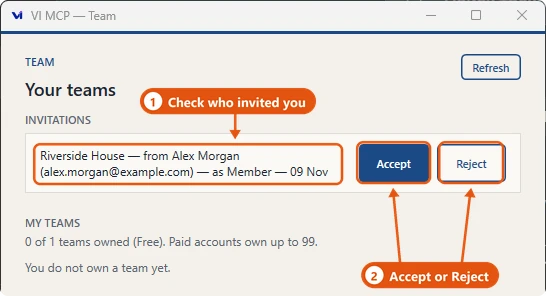
Your colleague checks who sent the invitation (1), then clicks Accept or Reject (2). - 5
Manage the team
On the team’s page, Owners can tick or clear the Owner box next to anyone, Remove a person, Rename the team or Delete team. Everyone can Leave. Remove, Leave and Delete team ask first, and deleting a team cannot be undone.
A team always keeps at least one Owner. To hand a team over, tick Owner next to your colleague first, then clear it next to your own name.
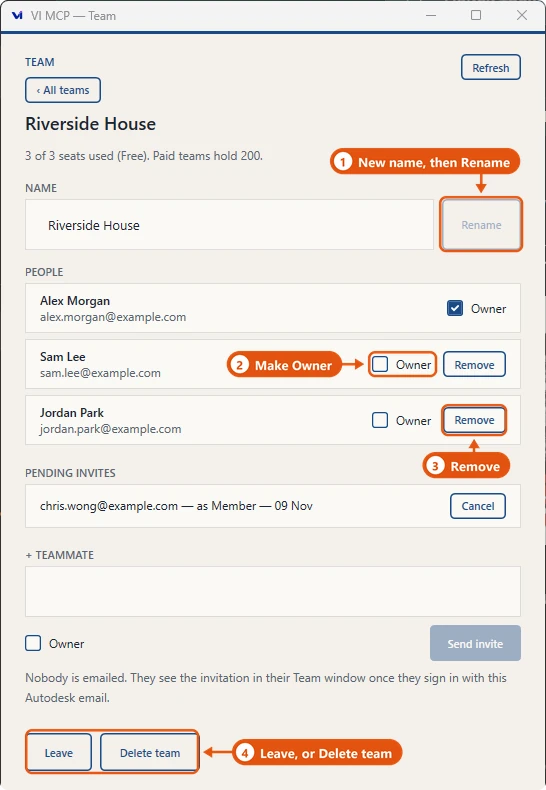
Type a new name and click Rename (1), tick Owner next to a teammate (2), Remove someone (3), or Leave or Delete team (4).
Roles
What Owners and Members can do
| Action | Owner | Member |
|---|---|---|
| See the team’s people, names and emails | ✓ Yes | ✓ Yes |
| Leave the team | ✓ Yes | ✓ Yes |
| Invite people and cancel invitations | ✓ Yes | — No |
| See the pending invitations | ✓ Yes | — No |
| Make someone an Owner, or clear it | ✓ Yes | — No |
| Remove people, rename or delete the team | ✓ Yes | — No |
Limits
How big a team can be
| Free | Paid | |
|---|---|---|
| Teams you own | 1 | 99 |
| Teammates in a team, besides its creator | 3 | 200 |
| Teams you can belong to | 200 | 200 |
| Invitations you can send in 24 hours | 100 | 100 |
Free covers the trial and an account after the trial. Pending invitations count as teammates. A team holds 200 when any one of its Owners has a paid subscription. See pricing.
With Claude
Ask Claude about your team
Claude, ChatGPT, Cursor and Codex can read your teams through VI MCP. Ask, for example, “Which teams am I in?” or “Who are the Owners of Lot 8?”. They see the teams, their people, emails and roles, and, if you are an Owner, the pending invitations.
They cannot change anything: inviting, accepting and setting Owners happen only in the Team window. Like every VI MCP tool, this works while your trial or subscription is active.
Once your colleagues are teammates, your AI can also send them its questions and you can forward them yours: see AI agent questions in Revit.
Privacy
Who sees your name and email
The people in a team see each other’s names and Autodesk emails, in the Team window and through the AI tools above, so a colleague’s email can reach your AI assistant. An invited email is kept while the invitation is pending and for 7 days after it is answered, cancelled or expires. The privacy policy has the details.
Questions
Teams questions
- Does my colleague get an email invitation?
- No. VI MCP sends no email. The invitation appears in your colleague’s Team window as soon as they sign in to VI MCP with that Autodesk account, so tell them you have invited them.
- Which email address do I invite?
- The email your colleague signs in to Autodesk with. Autodesk now signs people in by email, so it is the same address they type on Autodesk’s sign-in page. An invitation to any other address never reaches them.
- Can a team have more than one Owner?
- Yes. Tick Owner when you invite someone, or tick the Owner box next to a teammate later. Every Owner can rename the team, invite, remove people and delete the team. The last Owner cannot leave or give up Owner until they make someone else an Owner.
- What happens to my team when the trial ends?
- Nothing is deleted. Teams keep working with the Free limits: you own one team with three teammates. A team that is larger than that keeps everybody, but takes no new invitations until it is back under the limit.
- Why can I not accept an invitation?
- Check that you are signed in with the Autodesk account the invitation was sent to. An invitation expires after 30 days, a full team takes nobody new, and one person can be in at most 200 teams. The Team window says which of these it is.
- Can Claude invite people or change roles?
- No. Claude can read your teams, their people and their roles, but every change is made by a person in the Team window in Revit.